
Oralo接着讲
Get Oralo
STEP-BY-STEP GUIDE

Voice-following teleprompter for iPhone & iPad

Follow these steps to read a script with Oralo on iPhone or iPad. Add your text, check voice following, then practice pausing and picking up a line. Have a short script ready before you start.

PRACTICE SCRIPT

Try this three-sentence script

Use this same script through the steps below. Download the TXT file to your iPhone or iPad, then import it in Oralo, or paste the text into a new script.

Download the sample (.txt) ↓

Today I’ll share a short update on our project.

This week, we completed the first draft and reviewed the feedback.

Next, we will test the changes and confirm the plan on Friday.

The screenshots use this English practice script. Labels identify each captured version and environment. Simulator images demonstrate the interface; they are not physical microphone tests.

1. Put a short script in Oralo

  1. Create or open a script

    In your library, tap New script → Paste text and add the three sentences above. Or download the sample on this device, then choose New script → Import file and select the TXT file.

  2. Match the speech language

    On the Prepare screen, open the top-right (…) menu → Speech language. Choose Mandarin or English (US) to match what you will say.
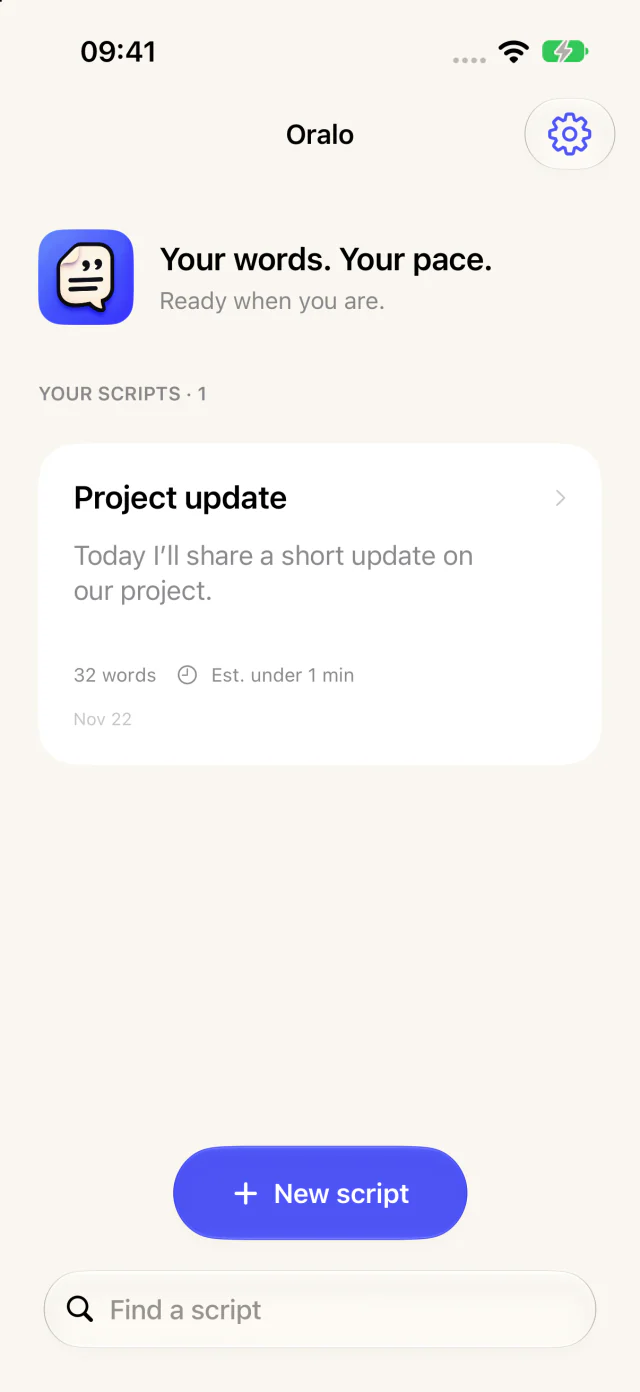
Oralo English script library with the Project update practice script
The script library. Open a saved script or use New script at the bottom.Native UI capture · Oralo 1.0 (14) · iPhone 17 simulator · iOS 27.0 · 22 Nov 2026.

2. Check your microphone, then start

  1. Open the readiness check

    Tap Start speaking at the bottom of Prepare. On Before you start, tap Check voice following and allow the permissions requested by the app.

  2. Finish device setup

    If Download speech model appears, download it while online and check again. If Try compatibility recognition is offered, you can try that on-device option. Start manually is available if voice following cannot be prepared.

  3. Read the first sentence

    When you see Ready on this device, tap Start speaking. In a quiet place, read “Today I’ll share a short update on our project.” Check that the highlighted position follows those words.
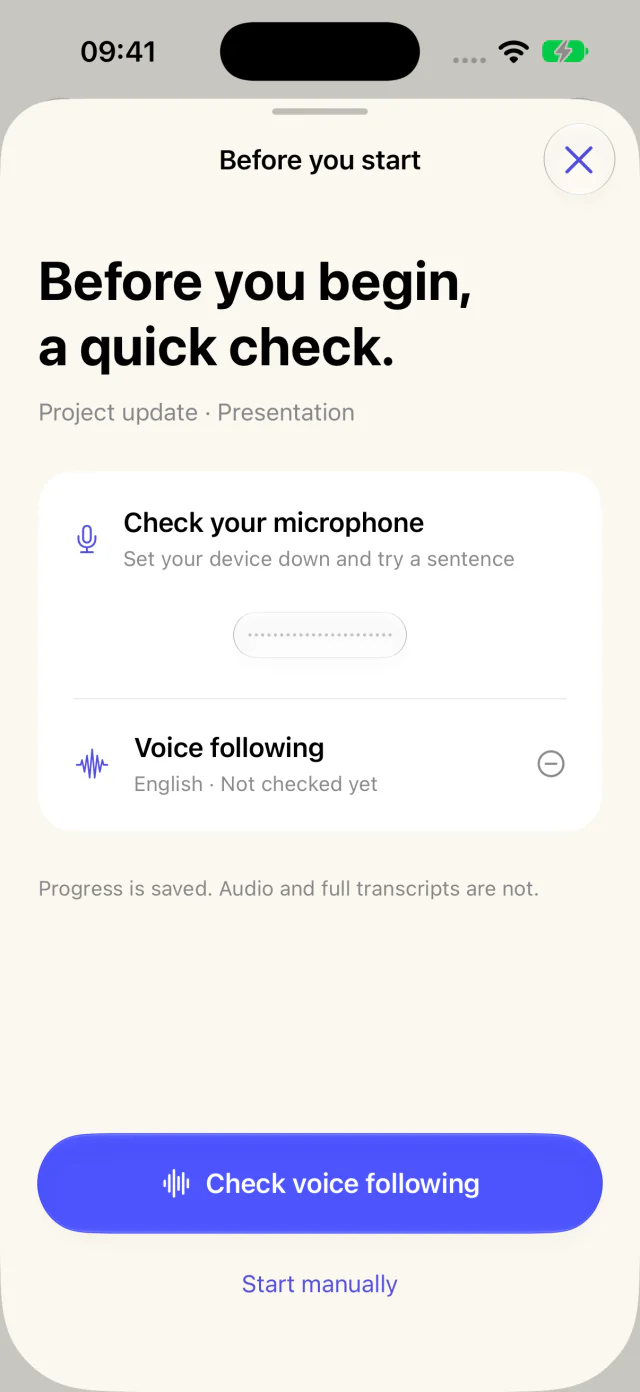
Oralo Before you start screen for Project update, with English selected for voice following
Before you start, opened from Start speaking. The English project-update script is ready for its microphone and voice-following checks.Native UI capture · Oralo 1.0 (14) · iPhone 17 simulator · iOS 27.0 · 22 Nov 2026.

3A. Pause and return to the script

  1. Try a natural pause

    After the first sentence, pause briefly, then read “This week, we completed the first draft and reviewed the feedback.” Following is designed to wait during the pause. To stop listening explicitly, tap Pause; tap Resume when ready.

  2. Return with the original wording

    Add a short comment in your own words. Then return with “Next, we will test the changes and confirm the plan on Friday.” Watch whether Oralo picks up the original wording; a jump to a distant paragraph is not guaranteed.

If the controls are hidden, tap the reading area to show them. If the position is wrong, use Pick up as shown in the next step.
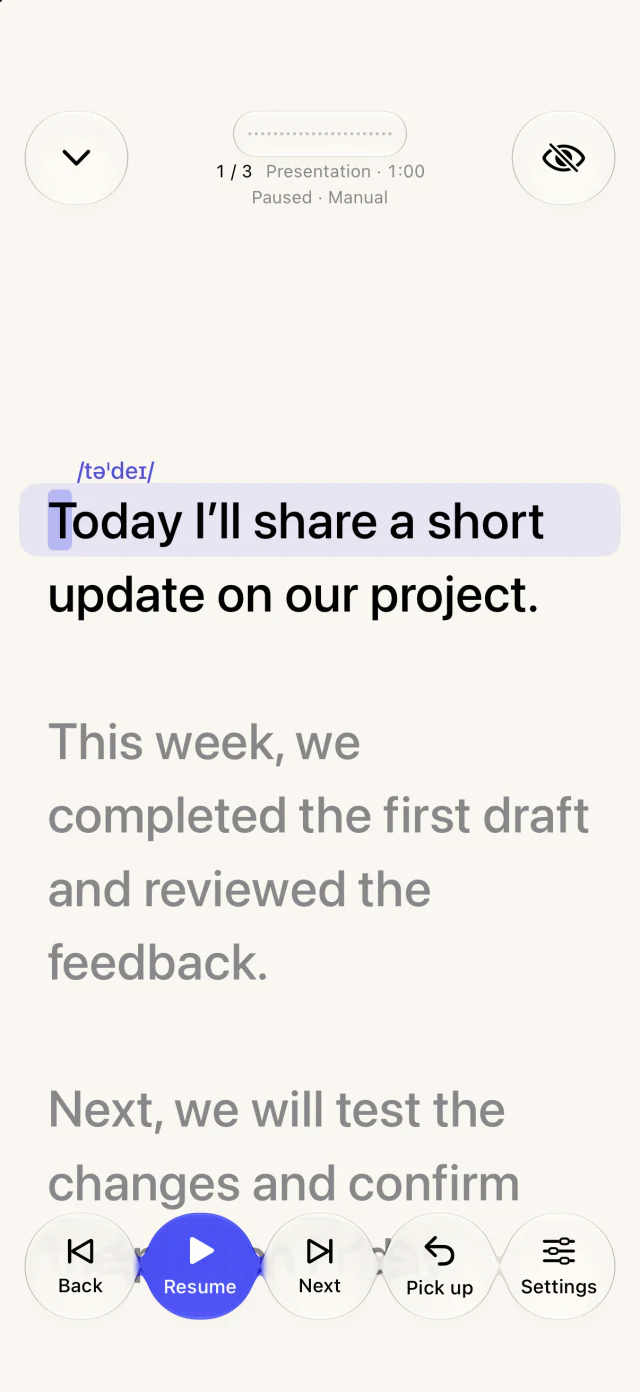
Oralo English reading view with Back, Resume, Next, Pick up and Settings controls below the Project update sample
Expanded controls for the same English practice script. This capture is paused in manual mode; it shows the buttons, not a microphone test.Native UI capture · Oralo 1.0 (14) · iPhone 17 simulator · iOS 27.0 · 23 Nov 2026.

3B. Use Pick up to choose the next sentence

  1. Open the sentence list

    Tap Pick up at the bottom of the reading view to open Choose where to continue. Sentences appear in script order, with the current sentence marked Current.

  2. Choose the third sentence

    Select “Next, we will test the changes and confirm the plan on Friday.” Oralo returns to the reading view and stays paused.

  3. Check the position, then resume

    Check that the highlight has moved to the third sentence. When using voice following, tap Resume before reading it. Back and Next move one sentence at a time.
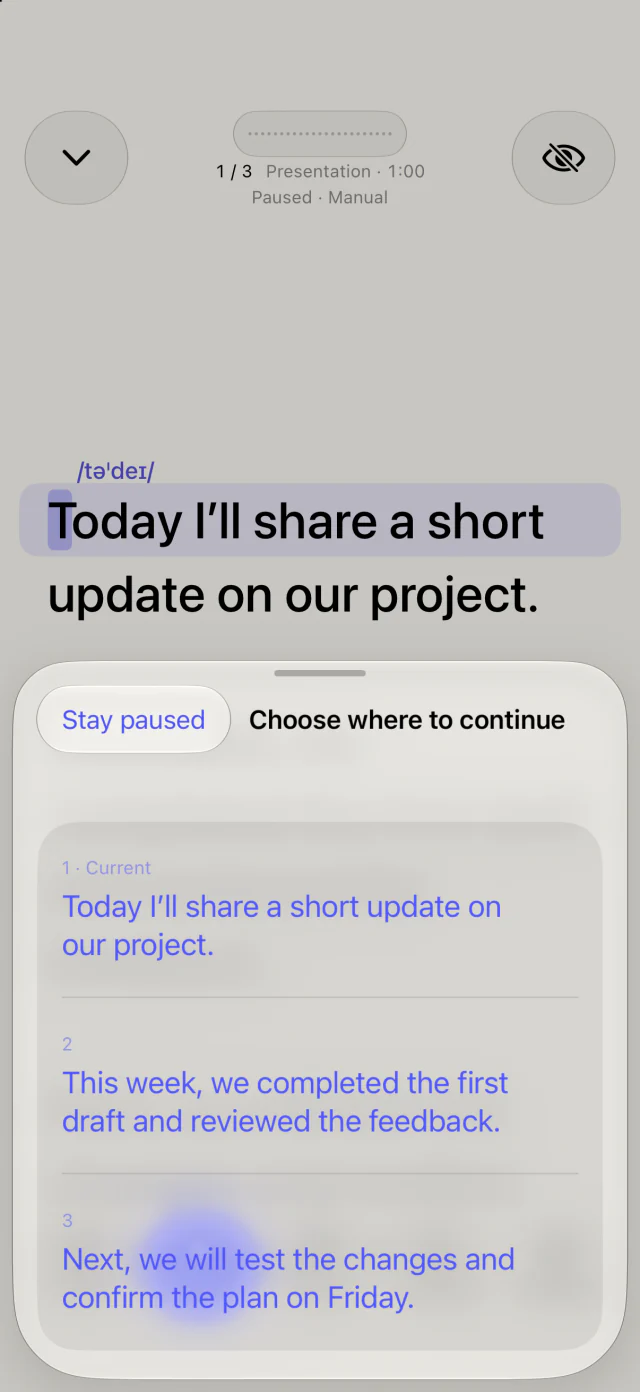
Oralo Choose where to continue list showing all three sentences of the English Project update sample
The real sentence list opened with Pick up. Selecting the third sentence moves to that position without resuming listening. This capture uses manual mode.Native UI capture · Oralo 1.0 (14) · iPhone 17 simulator · iOS 27.0 · 23 Nov 2026.

4. Check these before a longer talk

  • The words are not moving

    Check the selected speech language, microphone permission and readiness result. Move closer to the device, reduce background noise, and try a short sentence from the script. Use Pick up → select a sentence → Resume if your place is wrong.

  • Voice setup is unavailable

    Follow the model-download or compatibility option shown on Before you start. You can use Start manually to read and change sentences without voice recognition.

  • You want to work offline

    Editing and reading use local data. Voice following requires an available on-device recognizer and its language model. The first model download can need internet access; unavailable recognition does not switch to cloud audio upload.

For a recording in another app, use the floating-prompt guide. Its microphone behavior and tested app coverage are different from reading inside Oralo.

A few things to know.

If I pause or speed up, will it stay with me?

It is designed to wait when you pause and to follow when you continue from the script. How steady that feels depends on your environment, device, language, and installed system model.

How do I choose exactly where to continue?

Tap Pick up and choose a sentence. Your selection takes priority and leaves following paused; tap Resume to listen again. Back and Next move one sentence at a time.

Can I use voice following offline?

If the system model is already on your device, voice following can run on-device. The first download of a model or voice may need the internet. This is not a claim that every feature works fully offline, or that offline use has been independently verified end to end.

More about Oralo

Ready to speak at your own pace?

Download on the App Store

Available for iPhone and iPad on iOS 18 or later. One download, all features. No subscriptions.

QR code for Oralo on the App Store

Take Oralo to your iPhone or iPad

Scan with your camera to open the App Store.

This shares only the download link, not your script.

How the floating prompt works ↗