
1. Open the floating-prompt controls
Prepare your script
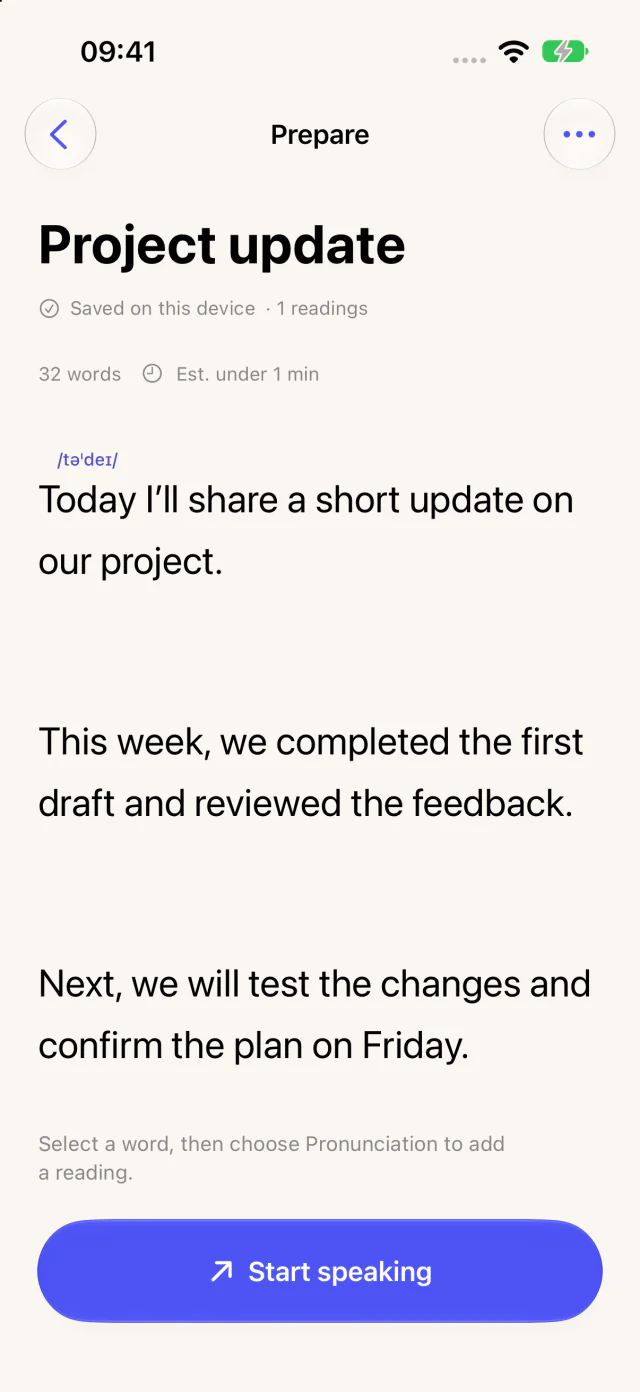
In your library, tap New script → Paste text and add the three sentences above. Or download the sample on this device, then choose New script → Import file and select the TXT file. On Prepare, use (…) → Speech language → English (US).
Enter Floating prompt
On Prepare, open the top-right (…) menu → Floating prompt. Choose Fixed pace or Voice follow. Close an active floating window before changing modes.
2A. Use fixed-pace scrolling
A steady scroll without microphone access. Start here if you want to set the speed yourself.
Choose your starting point
Select Fixed pace. Use Choose passage to select the first sentence, “Today I’ll share a short update on our project.” Adjust Scrolling speed and Text size, then tap Preview scrolling. Read all three sentences and adjust the speed until comfortable. Pause preview stops it.
Open the window, then switch apps
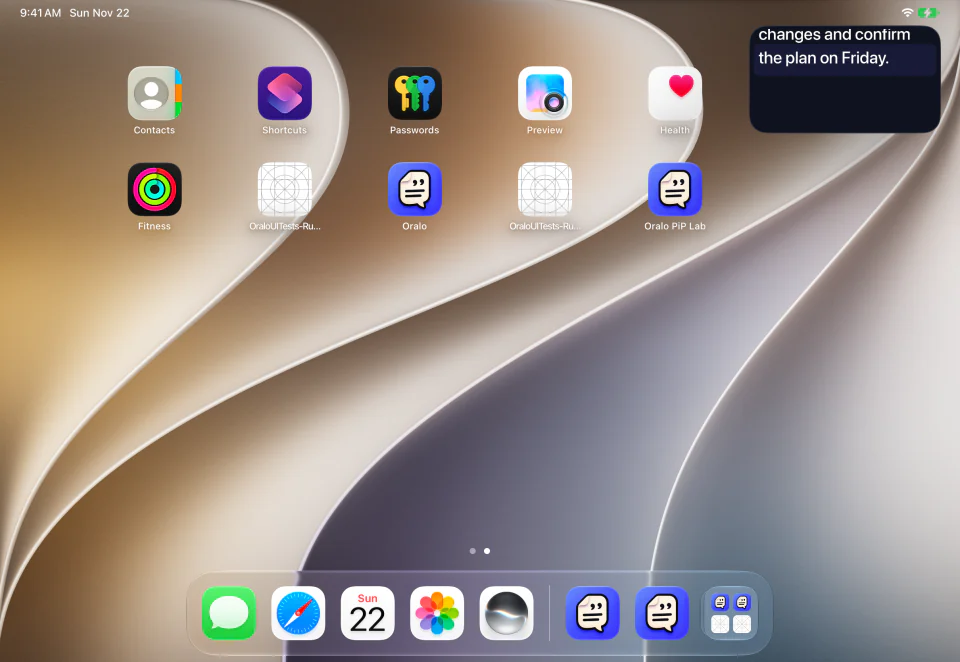
Tap Open floating window. A three-second countdown starts before the text scrolls. Switch to the app you want to use while keeping the window visible. Read the first two sentences in that app and check that the window stays visible.
Check the framing
Move the system Picture-in-Picture window away from important controls. If Camera tucks it against an edge, tap the edge arrow to bring it back. Pinch to resize within the sizes allowed by the system.
2B. Let the window follow your voice
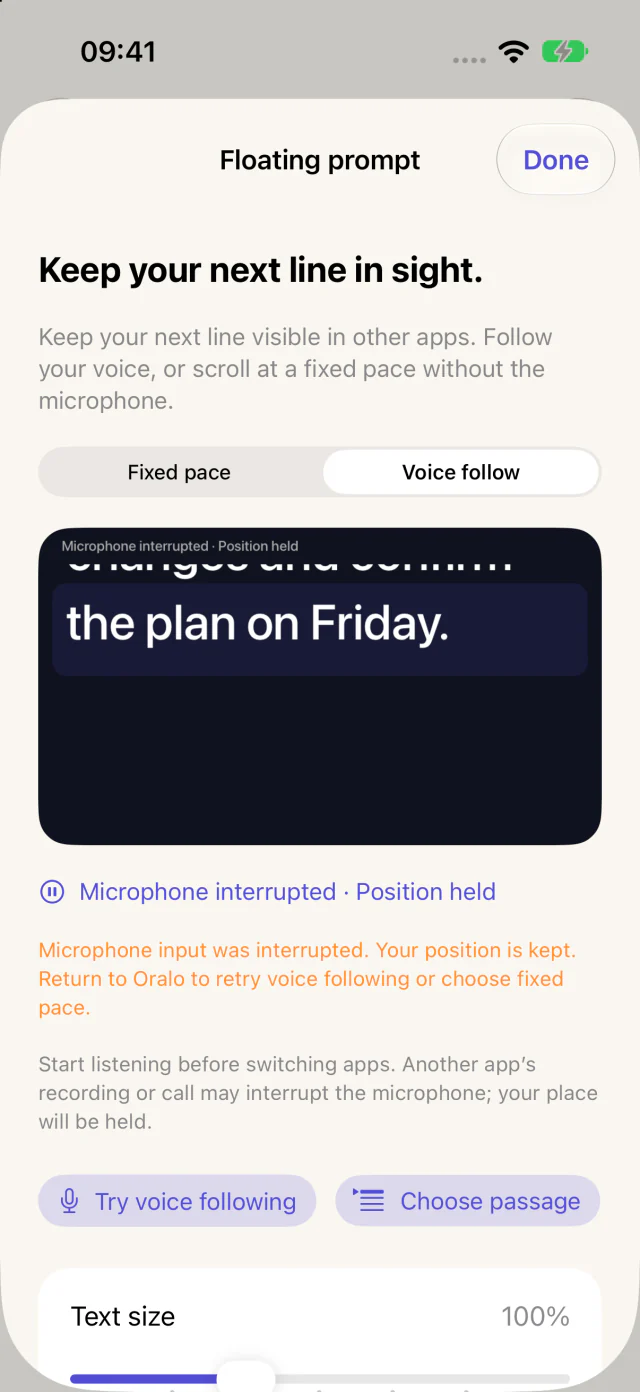
Prepare voice following while Oralo is still in the foreground, before switching to another app.
Select Voice follow
With the floating window closed, select Voice follow. Use Choose passage to select the first sentence of the sample and adjust Text size.
Test a sentence in Oralo
Tap Try voice following. Allow requested permissions and use Download speech model and retry or Retry with compatibility recognition if offered. Read a sentence and check the position before you leave Oralo. Read the first sentence of the sample, pause, then read the second.
Open the window
Tap Open floating window. Wait for voice preparation to finish and the window to open, then switch apps. Read a few lines in the other app before starting a longer take.
Fixed pace and Voice follow are separate modes. If microphone input is interrupted, voice mode holds your place; it does not silently change into timed scrolling.
3. Return, restart, or fix an interruption
The script stops following
Return to Oralo and close the window if needed. In Choose passage, select the third sentence, beginning “Next, we will test…”. Tap Try voice following and read that sentence. Once it follows again, reopen the window. If the other app repeatedly interrupts input, close the window and try Fixed pace.
You return to Oralo
Returning pauses the prompt and stops voice capture. Start the preview or voice check again when you want to resume. Returning to the Floating prompt screen alone does not restart listening.
The window closes or cannot open
Picture-in-Picture availability and placement are controlled by the system and the other app. Return to Oralo and try Open floating window again. If unavailable, use the in-app preview or full-screen prompting.
4. What has actually been checked
Use these observations to plan a short check on your own setup. A visible window, live microphone input and audio in the saved recording are separate things to verify. These are historical observations for the versions shown, not a new test of every subsequent release.
| Setup / evidence | Observed result | Limit |
|---|---|---|
| Physical-device check · Oralo 1.0 (13) iPhone 15 Pro · iOS 18.1 · system Camera photo preview 20 Nov 2026 | Floating text stayed visible in fixed-pace and voice modes; microphone input continued in voice mode. | This test did not start video recording or measure spoken-word accuracy. |
| User feedback · Oralo 1.0 (14) 21 Nov 2026 | A user confirmed floating prompts, voice following during recording, normal recorded speech and pickup after ad-libs. | The feedback did not include the device, OS, target app or recording duration. It cannot establish compatibility for a specific app/device combination. |
Other recording apps, livestream apps, calling apps and long sessions are not covered by a complete device test matrix. The iPad screenshot above demonstrates the interface only. Before an important take, record a short clip and play it back to check both the prompt and your voice.